
Automating Microsoft To Do reminders when your brain checks out
Microsoft To Do *should* be one of those set-it-and-forget-it tools for work-life balance. But the moment you start layering automation on top—think reminders from Teams messages, recurring weekly tasks, or syncing with Google Calendar—it can go completely sideways. Notifications don’t come through. Tasks show up three days late. Or my personal favorite: reminders that randomly move themselves back in time like they’ve hopped in the DeLorean.
This post is about making Microsoft To Do remind you at the right time, in the right format, without making you burn out trying to perfect it. I’ve cobbled together these workflows across maybe 7 Zaps, 3 Power Automate flows, and not one but two Postman collections. You don’t need to go that deep—but you do need to know where things fall apart.
1. Creating recurring reminders without weird shifting dates
So here’s how I originally set mine up: I had a recurring task every Friday at 3 p.m. to plan out the next week. Microsoft To Do gives you the recur options like daily, weekly, custom when, etc.—but if you choose “weekly” and then move that task manually to another day, MS To Do treats it like a *different* recurrence series. Not only does that new date stick, but the next week it resurfaces on Thursday at 5 p.m. instead. What.
You can *kind of* fix this if you always mark the task complete without moving it. But let’s be real—we all rearrange our Fridays. So I started using Zapier to recreate the task weekly instead.
Here’s what worked:
– Every Friday at 2:55 p.m., the Zap deletes any uncompleted “Plan next week” task from the current week
– Then it creates a fresh one dated for the upcoming Friday, regardless of what I did to the old one
– I add a custom field inside the Notes section that says `ZAP AUTOGEN`, so I can identify it later
After setting it up, I noticed something odd: sometimes the task would appear at 3:02 p.m., and sometimes it wouldn’t trigger at all until I logged into Microsoft To Do manually. Turns out MS Graph API has some latency spikes, and if the token isn’t refreshed, the request just silently fails. I had to reconfigure token refresh intervals in Zapier’s advanced webhook editor.
2. Forwarding flagged Teams messages into reminder tasks
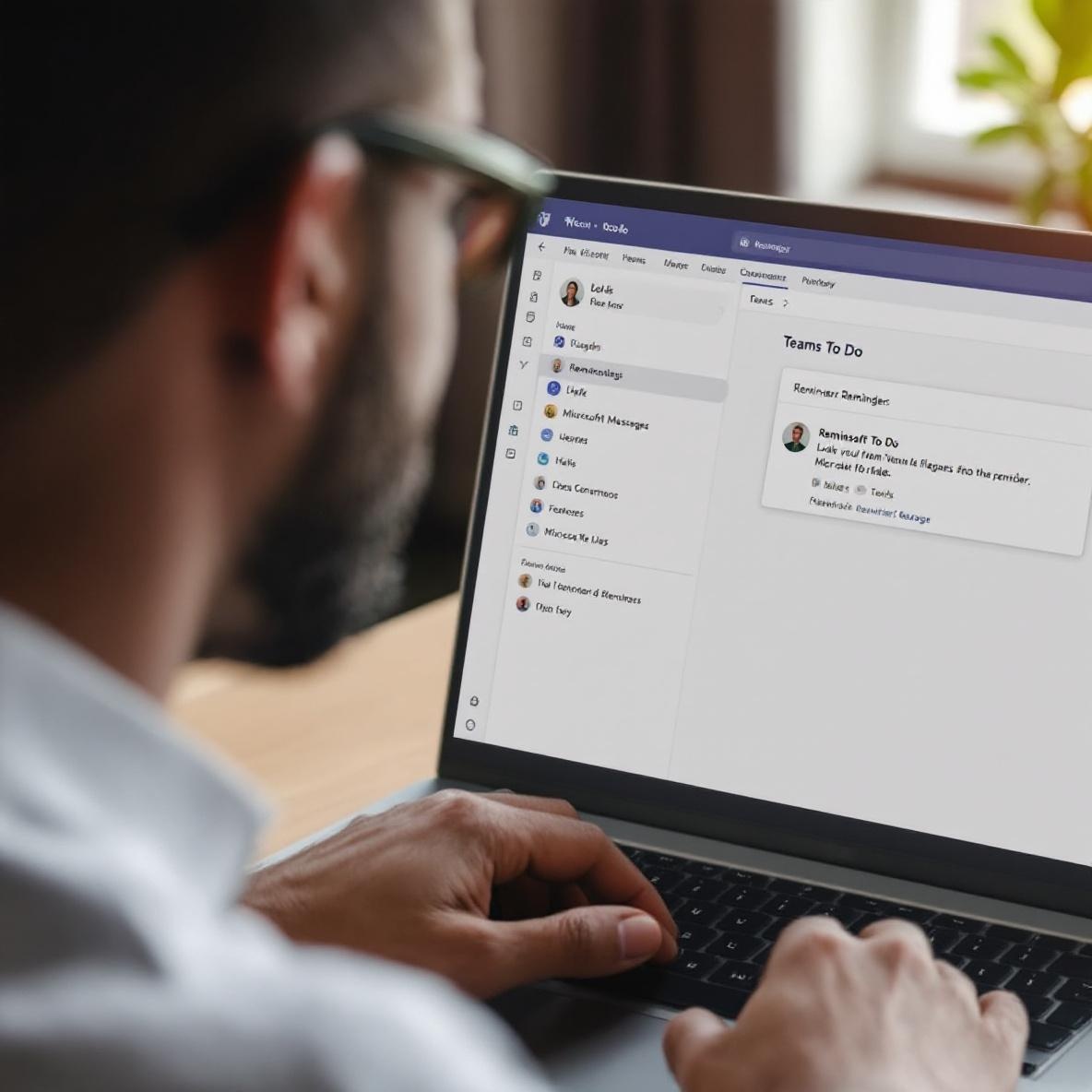
Microsoft actually brags about how Teams messages appear in Microsoft To Do if you flag them… except only the most recent flagged messages show up. Once you have more than 10 or so, older ones start disappearing. No joke. I went hunting through the Graph API and yep, the integration only looks at flagged messages from the last rolling 30 days.
So instead, I used Power Automate to move things manually:
– When I right-click a Teams message and select “Copy link,”
– My flow grabs that link from my clipboard (using a hotkey app, since Power Automate doesn’t natively do clipboard stuff),
– Parses out the chat ID and message ID,
– Saves the full text to a new MS To Do task called “Reply to: [snippet]” with the Teams link in the Notes
It’s overly complicated, but now I have a reliable activity list that includes real context. I also try to set the reminder based on urgency. So in my script, if I prefix the copied link with `now`, it sets the reminder for 30 minutes from now; `later` sets it to tomorrow at 9 a.m., and so on.
It’s hacky and fragile, yup. I’ve lost like 3 tasks due to Teams web hook errors that didn’t return the expected JSON block. But this method saved me from forgetting actions that came out of fast-moving standups. ¯\_(ツ)_/¯
3. Handling reminders across personal and shared lists
I bought a second phone line this year for freelance projects—and that meant toggling between two Microsoft accounts. Guess what MS To Do doesn’t do? Show shared task lists across orgs.
If a collaborator assigned you a task in their org’s shared list, you won’t get a reminder unless you’re actively using that account. It doesn’t sync reminders across accounts even when you add both accounts to the same device. I nearly missed a tax submission because of this.
Here’s my Frankenstein workaround:
– Daily Power Automate job that pulls *assignedToMe* tasks from both orgs
– Appends them into a personal list in my main account
– Manual tag added like `#external_proj` so I don’t forget where it originated
– Reminder is set to noon next day so I have at least 4 hours of buffer
The bug here is that any completed task in the new personal list doesn’t reflect back in the original shared list. So the other person still thinks it’s pending unless I remember to mark it twice. I tried dual-syncing them via Flow but it started exponentially duplicating tasks 😬
Also: if you accidentally open To Do while you’re logged into the wrong Microsoft account, some of those reminder rules just… stop applying. It’s as if the app did a soft reset on cache storage. Still haven’t figured out exactly why that happens, but logging out of one account before switching helps reduce issues.
4. Filtering distractions by auto-removing pointless morning alerts
If you ever woke up to seven Microsoft To Do notifications and genuinely had no idea what most of them were about: same.
I had recurring reminders that were technically low-importance: take out trash, water bamboo, reply to my cousin about camping. But those things created mental static when I was trying to boot up for work.
So I built a filter into Power Automate that checks each reminder’s label. If a task is tagged `#nonwork`, it suppresses any notification between 9 a.m. and 1 p.m. (I got the logic running using Notification Settings in conjunction with a dummy task update trigger.)
Key issue: I couldn’t get this working from mobile. Even if the task is suppressed in Power Automate, mobile still shows it as a badge or toast alert half the time. I think it caches reminders locally and doesn’t care if they’ve been programmatically updated.
I wound up turning off To Do mobile notifications and only watching them from desktop via synced Outlook notifications. This limits how much clutter hits me during focus sessions. But yeah—would’ve loved if MS gave us a native “mute task by tag” feature.
5. Solving mystery missed reminders with a forgotten settings tweak
I had one week where everything was late. Every single MS To Do reminder didn’t ping. Not one. I started debugging the usual suspects—timezone issues, sync errors, app cache—but it didn’t make sense. My computer time was right, my Outlook reminders still fired, nothing showed as overdue.
…Until I found this: under *Settings > Notifications*, there’s a toggle called “Remind me about tasks” that had flipped OFF. I’m 95% sure I didn’t do this. Some Windows update? Maybe a sync conflict with mobile?
The kicker: this setting is not account-wide—it’s *device-specific*. So if you install To Do on two devices and disable reminders on one, that device won’t alert you even if you toggle it on elsewhere. I toggled it back on, force-quit the app, then reopened—and reminders started working again immediately 🙂
Moral here is: if your reminders stopped randomly, check this setting on **every** device you use. No reminder will help if the whole system got silenced without you knowing.
I now run a weekly script that polls the MS To Do API and sends me a DM if I have no reminders scheduled for the next 12 hours. It’s saved my butt at least twice so far when I forgot to re-enable alerts after traveling. What a weird way to compensate.