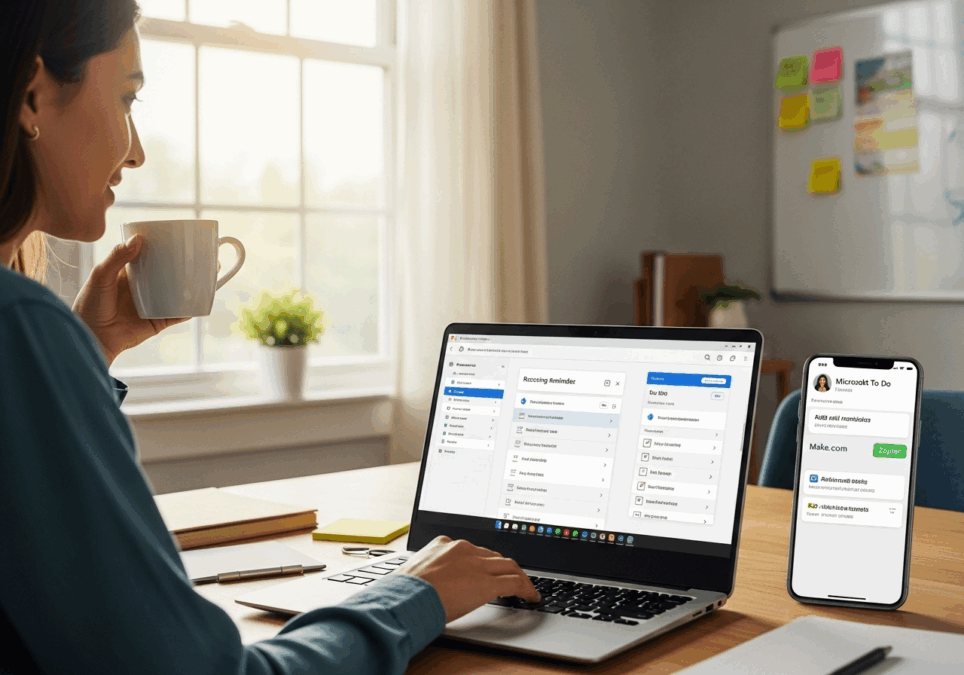
Automating reminders with Microsoft To Do without breaking your brain
After building and rebuilding recurring reminder systems in everything from Notion to Google Calendar to three different Zapier hacks, I ended up crawling back to Microsoft To Do again last week. The plan was simple: scheduled reminders for mundane stuff like checking the fridge for expired tofu on Fridays, or nagging myself about submitting insurance documents before the 15th. What could possibly go wrong? ¯\_(ツ)_/¯
Turns out, a lot — even if you’re just sticking to the native features.
1. Setting up recurring tasks in Microsoft To Do
The first test I ran: create a task called “Backup external drive” and set it to repeat every Friday at 2pm.
This worked — kind of. The task repeated, sure. But the reminder notification wasn’t consistent. Sometimes it popped at 2pm on the dot, and other times it never showed up, even though the task was marked as overdue in the app. This would’ve been funny if it wasn’t the same day I forgot to back up a client project…
Here’s how I got it to fire more reliably:
1. Set the due date and time first
2. THEN add the reminder
3. THEN set the repeat pattern (not the other way around)
If you choose “custom recurrence” before setting a reminder, it tends to nuke the notification altogether. This isn’t documented anywhere — it’s just a thing I’ve repeatedly banged my head against.
Also, recurring subtasks do not work. At all. I tested this with a weekly reset checklist and none of the sub-items regenerated. Only the parent reappeared. YMMV, but for now, don’t try to auto-repeat your coffee machine descaling steps under a single To Do item — break them out instead.
2. Getting Outlook and To Do reminders to not anger each other
Since Microsoft To Do uses the same backbone as Outlook Tasks, I thought I could manage everything from the Outlook web calendar and have it sync nicely. NOPE.
If you add a reminder in Outlook, then open that same task in Microsoft To Do, it often strips the custom reminder completely. Worse, if you try to update the due time in To Do after changing it in Outlook, you’ll sometimes end up with duplicate reminders — one at the old time and one at the new.
So here’s how I keep things from cannibalizing each other:
- Pick one primary front-end: use either To Do or Outlook — not both — for edits
- Do not open the same task in both apps within a few minutes — sync lag causes issues
- If needed, export a task to OneNote and re-import just to break the Outlook calendar binding
It’s clunky, but safer.
Also worth knowing: tasks moved between lists can lose their recurrence settings. I made a gorgeous tag-based sorting system with custom smart lists, but after moving tasks between them, half lost reminders. You wouldn’t know unless the task fails to show up that week — which is fun.
3. Using Power Automate without going fully rogue
So okay, here’s where I tried getting a little fancier.
I connected Microsoft To Do to Power Automate to create a reminder that only triggers if I haven’t completed yesterday’s task. Basically, a nagger if I forgot to log my midday walk.
Simple idea, but the flow looked like this:
– Trigger: recurring every day at 11am
– Check if yesterday’s “Midday Walk” is completed
– If false, send a push notification to my phone
Except: Power Automate’s To Do connector doesn’t let you filter directly by date-created or due-date. You have to use weird OData filters like:
“`
filter=startswith(subject,’Midday Walk’) and status ne ‘completed’
“`
And even then, if the task got completed *after* the trigger fired, you’re out of luck. I added a 30-minute delay in the flow and a second check step — ugly, but better than daily false positives.
Also lol-worthy: push notifications sometimes double-fire if the same task exists on multiple lists. Apparently, Power Automate doesn’t de-dupe across list scopes unless you manually do so. I turned on the “disable concurrent runs” toggle and that helped… somewhat.
Anyway, unless you’re deeply into flow-building, I don’t recommend routing everything through Automate. It’s powerful, sure — but it’s also the kind of tool where you silently break everything for a week when one condition stops returning results and nobody alerts you 🙂
4. Triggers that do nothing and how to force them
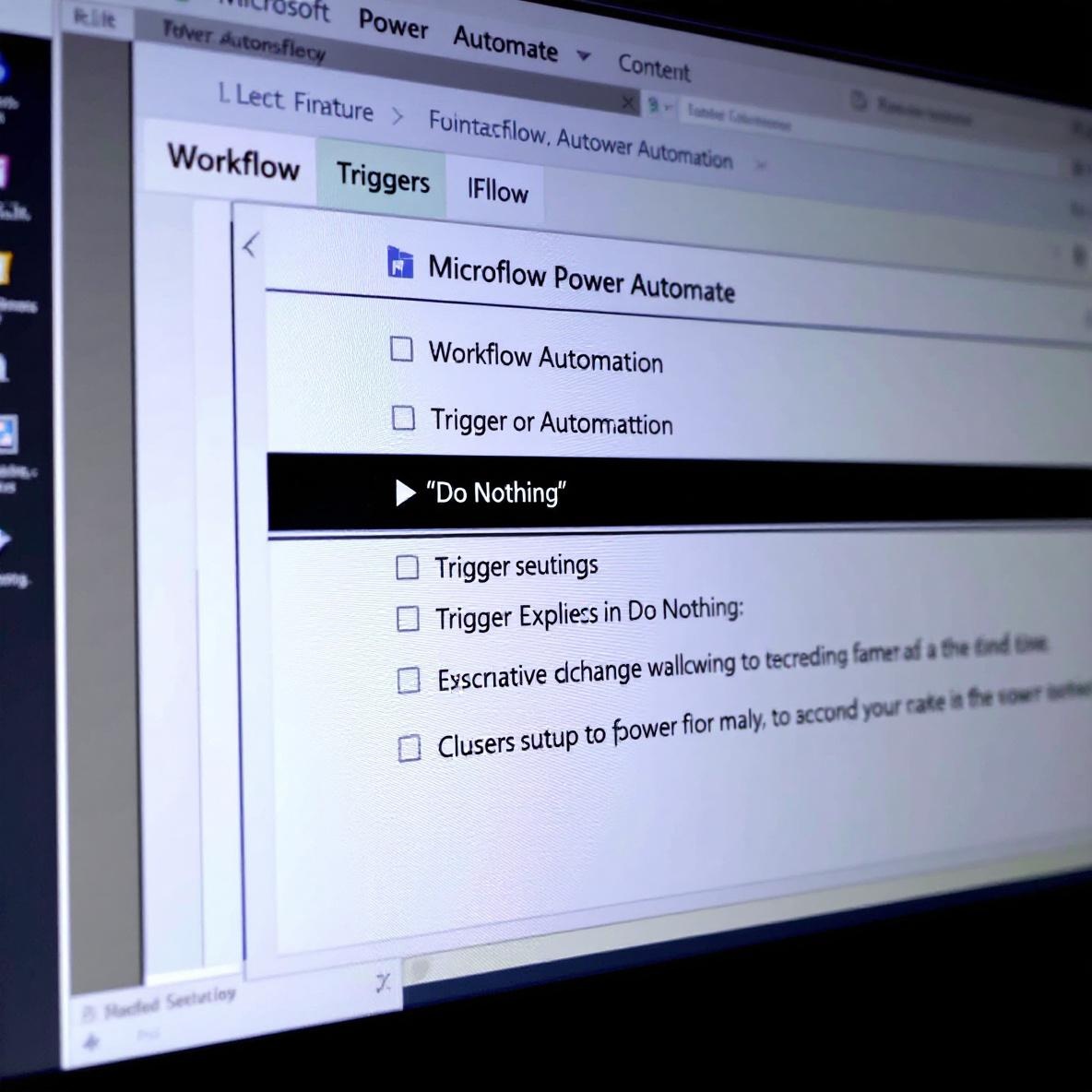
One baffling bug I hit last month: I made a recurring To Do task to check gift card balances every 1st of the month. It had a reminder set and everything looked fine.
Except on the first of the next month, nothing appeared in my tasks. No red badge, no reminder toast, no overdue item. Just… vanished?
Here’s what fixed it eventually:
– Deleted the existing task
– Recreated it in a different list
– Triggered one manual toggle of “Is My Day” just to force a sync
Why the Is My Day button forced a cloud sync… unclear. But multiple forum folks mentioned this helped their reminder propagation too. Possibly a caching glitch.
Also: make sure the time zone settings between To Do, Windows, and your Microsoft Account all match. I once had a reminder silently trigger four hours early just because my laptop’s daylight savings toggle hadn’t flipped yet. 🤦
5. Simplest working checklist for dumb-but-steady automation
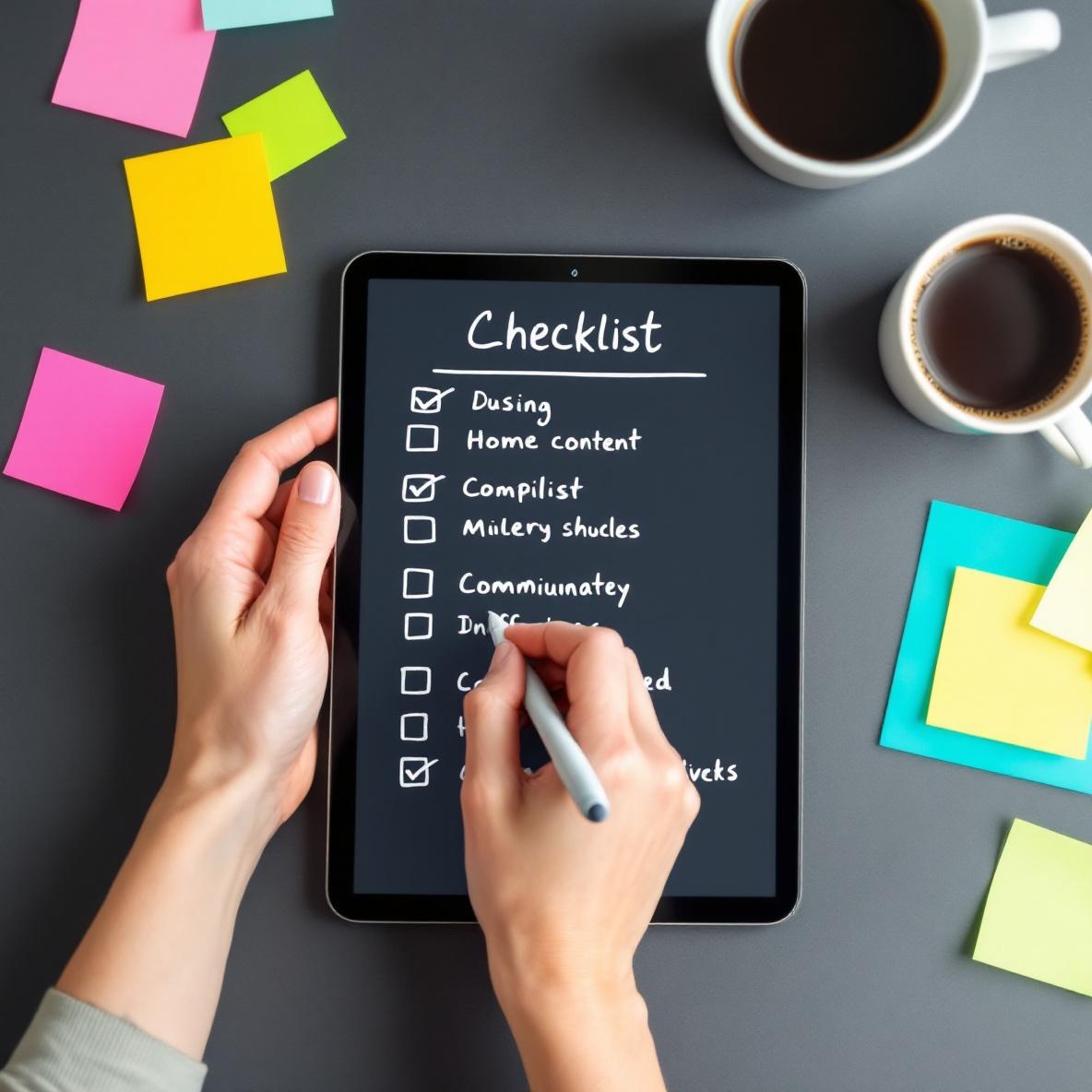
Look, if you want reminders that Just Work without nested flows, here’s the absolute lowest friction setup I’ve found:
– Always create recurring tasks from desktop
– Set due date and time FIRST, then add reminder, THEN recurrence
– Don’t use subtasks if you need recurrence
– Avoid moving recurring tasks between lists
– Don’t edit the same task in Outlook and To Do on the same day
– Check every Sunday if next week’s items have generated correctly
Is it elegant? No. Does it stop me from forgetting car registration dates and vitamin refills? Mostly 😛