Beginner Todoist mistakes I wish I fixed sooner
If you’re just starting with Todoist, congrats — and I’m sorry in advance. It’s one of those apps that seems super friendly until your recurring tasks start duplicating or your smart schedule ghosts you entirely. I’ve been using Todoist (and rage-deleting it) on and off for years, and for this round I decided: no more hacks, no more half-built label systems. Just the simplest things that work every single day.
Here’s how I unraveled what Todoist actually does — not just what the docs say it should do — especially as of spring 2025, where some of the behavior quietly changed and the forums quietly didn’t update.
1. Understanding how Todoist due dates really behave
If you’ve typed something like “every Monday” and expected it to show up every Monday… surprise. It probably didn’t. Unlike Google Calendar, Todoist’s recurring system tries to be natural-language-friendly but often ends up unpredictable.
One small but annoying issue: if you set a recurring task with a start date like “every week starting March 3,” then mark it as complete late — say, on a Thursday — it will still reappear as if you completed it on Monday. That feels logical until you’re managing something time-sensitive (like bill pay reminders), and end up doing everything three days behind without noticing. ¯\_(ツ)_/¯
Also, if you postpone a recurring task manually by dragging it or changing the date, it often breaks the recurrence entirely. It becomes a frozen clone. It’ll look the same and lull you into trust, but it won’t recur again unless you fix it.
Here’s a weird edge case I hit this week:
– Task: “Write newsletter every Tuesday”
– I rescheduled it (manually) to Wednesday because life happened
– Marked it done on Wednesday
– The task… disappeared. Forever.
That task had been set as: `every Tuesday`, but I manually changed the date to Wednesday. Todoist didn’t recognize that as part of the recurrence anymore. It quietly unhooked the rule.
If you want to avoid totally breaking your own routines, just NEVER change dates on recurring tasks manually. Instead, let them stay overdue or delete and retype them. Trust me, it’s less chaotic in the long run.
2. Small visual things that subtly cause chaos
There’s a psychological trap that happens when you use priority flags next to tasks. If you’re visual like me, P1 tasks in red feel urgent even if it’s just “refill printer ink,” and you’ll find yourself stressing over red buttons instead of actually thinking, “wait, does this really need to happen today?”
Also, the difference between “Today” and “Upcoming” tabs is a lot thinner than you’d think. On the mobile app, “Upcoming” shows a little calendar strip that makes scanning ahead easy — but swiping back to Today often hides tasks that are due without a time (aka all-day ones). So if you check Upcoming, it shows “Coach call at 4pm,” but when you later go to Today to triage your morning to-dos, that item disappears unless you hunt for it via the calendar.
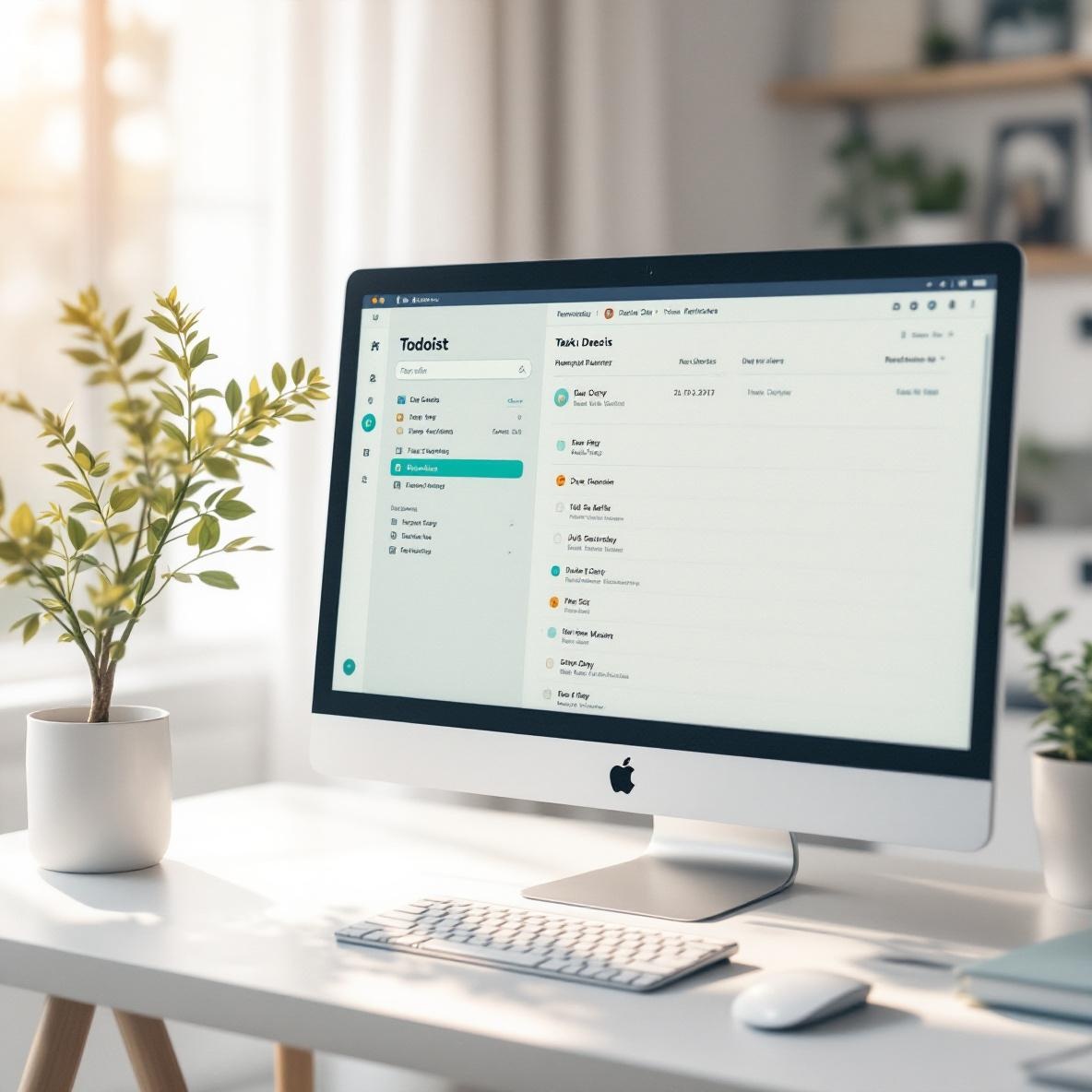
And the new 2025 desktop app for macOS has sections that collapse automatically depending on screen size. If you split-screen Todoist with your browser (like most bandwagon multitaskers), you’ll randomly lose the left-hand navigation bar unless the window is wide enough.
Practical things I now do:
- Only use 3 priority levels: ignore P3 entirely
- Label anything involving others as “Waiting” in the task title directly (not as a tag)
- Always view Upcoming in full-screen before planning anything
- Avoid embedding due times unless absolutely needed to trigger reminders
These things sound cosmetic, but they completely change how your brain thinks about tasks. Visual clumsiness leads you to rush, overcommit, or just ignore.
3. Filters and labels never work how you hope
There’s this moment everyone has around month two: you realize tags and filters aren’t hierarchies, and can’t really be nested. You try to build a GTD-style monster, except halfway through you stop remembering whether you named something “call-client” or just “call.”
And the UI doesn’t help. Adding a filter is hidden under a tiny sidebar popup. Typing a label with @ sometimes autocompletes weirdly, especially on mobile, where keyboard input can lag or crash the inline suggestion entirely. As of 2025, the iPhone app sometimes straight up refuses to autocomplete certain tags even if they exist. I reported it and… nothing 🙃
It also doesn’t support OR logic in filters by default. So `@home | @office` has to be typed literally like `@home, @office` — but if there’s a trailing space or typo, it just silently returns nothing.
One thing that semi-fixed this: I stopped using labels for contexts and started putting plain-text tags in the TITLE instead. So instead of filtering for `@call` I just write “Call: John re payment” or “Waiting: Sarah update.” Then I search plain text with Quick Find. Simple. Ugly. Never breaks.
4. The reminder system is both hero and villain
Okay, this one gets me emotional. I *love* that Todoist lets you set reminders based on time OR location. But also… it’s super unreliable depending on your platform. On Android, you can set a location-based reminder just fine, but I had to give the Todoist app full background permission and disable battery optimization or it wouldn’t trigger. Even then it only worked around 3 out of 5 times.
On desktop, I keep forgetting that reminders won’t fire unless you define a task time. If you just leave something as “Due today” but without a time block, no reminder. That’s not a bug, it’s just how Todoist treats time sensitivity — but it’s not intuitive.
One thing that DOES work well: recurring reminders tied to recurring tasks. For example, I have a recurring task for “Take out compost every Friday at 7am.” Adding a reminder exactly 5 mins earlier means it buzzes just before I leave the house. The system syncs across devices almost instantly (this is rare for Todoist), and doesn’t duplicate unless you accidentally complete it twice.
But here’s an actual reminder wall I ran into:
I scheduled a one-off task “Pickup print job” at 3:45pm. I manually added a reminder for 3:40pm. Moved the task later to 5:00pm but forgot to change the reminder. Reminder still fired at 3:40pm — which means the system doesn’t auto-update manually added reminders when task times change. Logical? Maybe. Expected? Not really.
5. Syncing between desktop and mobile sometimes breaks your trust
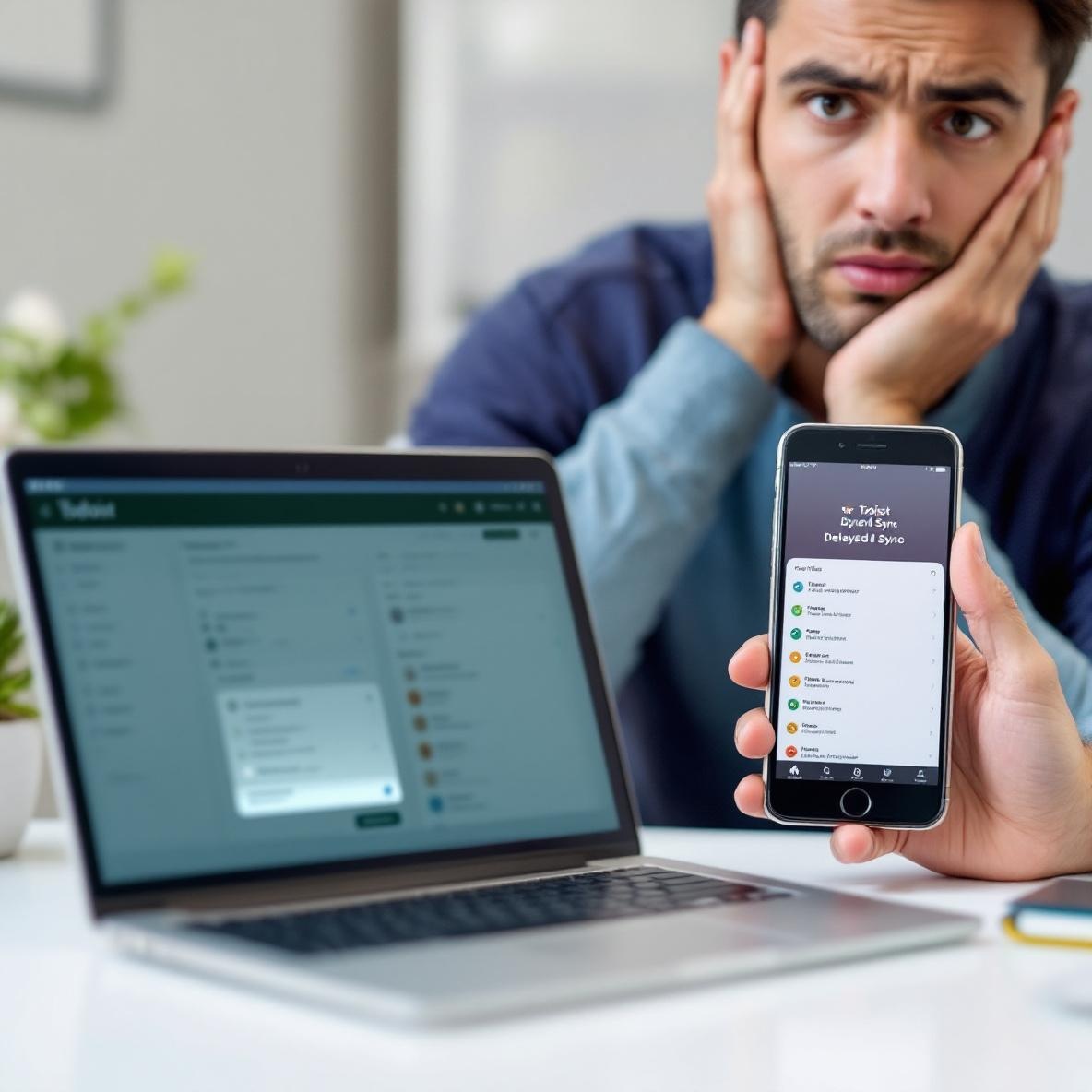
I had a week this January where Todoist sync simply stopped pulling updates from mobile to desktop. No error, no warning. I’d add something on my phone while walking to the gym, open my laptop later to follow up, and… it wasn’t there.
Here’s the thing: the sync status indicator hides inside the user menu. You have to click your avatar → scroll to bottom → see sync status. But that only tells you the last time *that device* synced. There’s no global view of sync health.
So I ran a tiny test:
1. Created 3 tasks on mobile
2. Went offline on desktop
3. Waited 15 minutes
4. Went online – still missing
5. Force quit desktop app — THEN it synced
Turns out the macOS version sometimes caches broken tokens during startup. That forces manual actions to refresh. I never got a sync error icon in toolbar, just… nothing.
After that, I developed a habit that honestly says a lot about my trust issues: I now copy pasted each week’s main to-dos into Notion as backup at breakfast. Honestly, Todoist *should* be my source of truth, but the sync silence broke me a little 😐
Only workaround that’s worked 100%: Force sync manually after every mobile edit. That means opening the settings page and hitting “Sync Now.” Yes, tedious. Yes, I hate that we have to do this in 2025.