
How freelancers use automation to save time for beginners
Ever since I accidentally triggered four duplicate invoices while testing a Make scenario in the middle of a client call (not my proudest moment), I’ve been way more cautious about reusing old automation setups. Especially as a freelancer where one misfire can cost either time, reputation, or literal money 💸. If you’re just starting out freelancing and eyeing automation to buy yourself back a few hours—a good instinct, btw—here’s what you actually need to pay attention to.
1. Using calendar syncs to avoid double booking
The first automation I ever set up as a freelancer was a Google Calendar to Calendly integration. I thought it was foolproof: if something showed up on my work calendar, my Calendly availability would reflect it. What I didn’t realize is Calendly only checks primary calendars by default. I had a separate “freelance” calendar where I manually tracked deadlines—but those weren’t blocking availability 😐.
Here’s how I fixed it:
- Open Calendly settings > Calendar Connections.
- Added my second Google Calendar to also be checked for availability.
- BUT I missed that you also have to *explicitly mark* it to affect scheduling. It’s a tiny checkbox labeled “Check for conflicts” next to each calendar name.
Once I ticked that, I stopped getting “why aren’t you on the call?” emails. Simple tweak, totally hidden by poor UX.
2. Automating proposals with dynamic templates
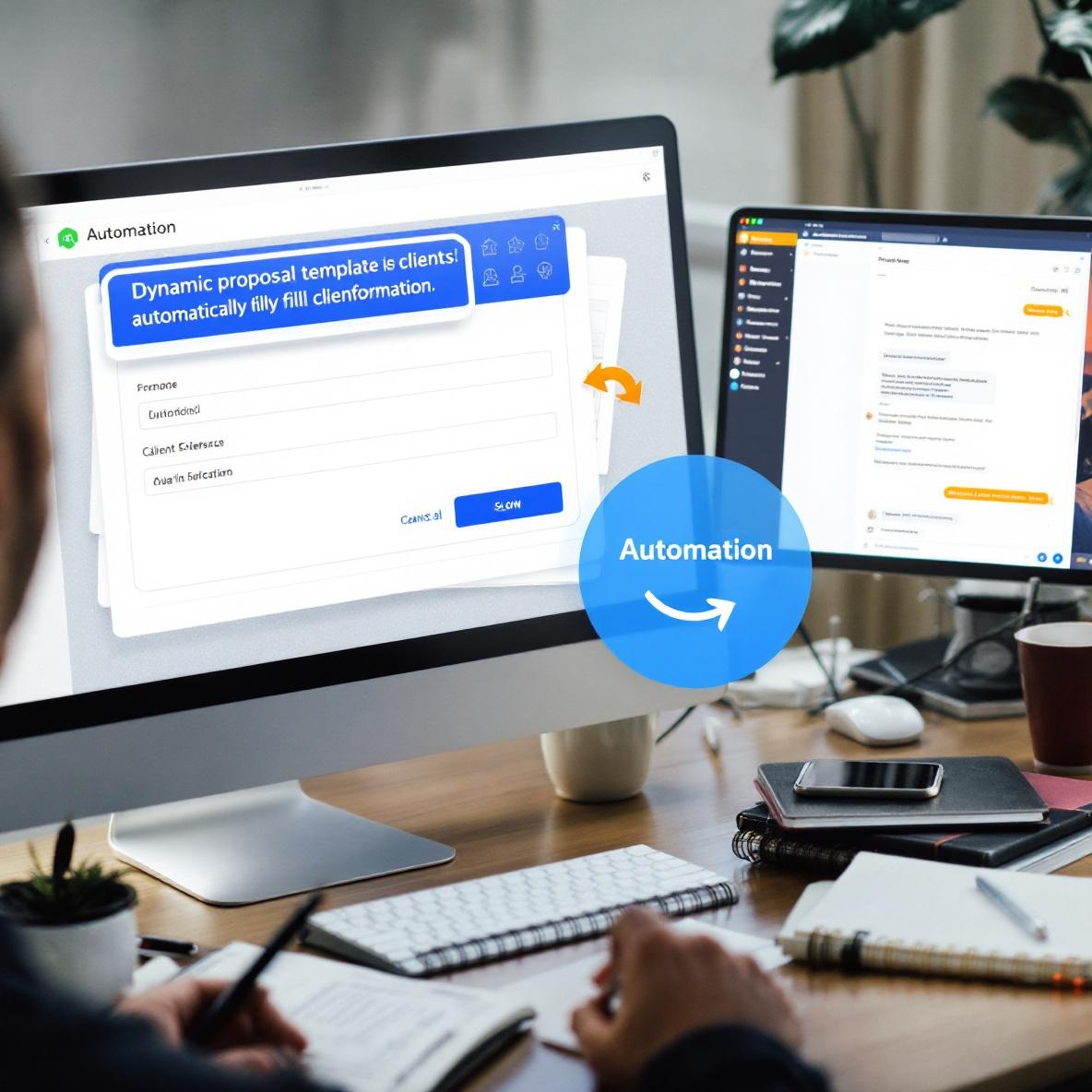
I tried auto-generating proposal PDFs with Zapier: Airtable form → Google Docs → PDF → Gmail. Sounds great, right? But the Google Docs template kept misbehaving. It would insert “null” in place of client name if it wasn’t filled *exactly* as I expected in Airtable.
Real moment: I sent a proposal that started with “Hi null,” 🙁
What I should have done:
- Used Airtable’s formula field to prefix with “Pending” if name is missing.
- Added a filter in Zapier that stops the run if [Client Name] is empty.
Also learned that Zapier’s Google Docs integration can’t handle rich text blocks or bullet formatting as variables. So when I tried populating a scope list, it just exploded into one long sentence. I had to hard-code the bullets in the template and map each item part-by-part. Yes, it’s tedious. Worth it tho.
3. Quickbooks automations can double charge by mistake
This one cost me actual money. I connected QuickBooks to a payment form on Typeform to send invoices automatically after someone submitted. It worked fine for about two weeks, then someone filled out the form twice ☠️. My automation was set to trigger on each new response—so it sent two invoices for the same amount.
QuickBooks doesn’t check for invoice duplication out of the box. And because I reused an old Zap, I forgot it also included a “Create Customer” step. So it created the same client twice.
The fix:
- Added a lookup step to search QuickBooks for existing customer email.
- If found, skip the “Create Customer” step.
- Then check if any open invoice already exists with same amount on the same day.
Here’s the edge case: if someone fills the form once, and their client assistant tries to help and submits it again, it bypasses duplicate detection unless you match on more than just email. I added Timestamp and Project Name as conditions, and things have stabilized.
4. Batch emails only work if your formatter step is right
I built a weekly follow-up automation where people who haven’t replied to quote emails get resent something gentle. Airtable → Filter (unanswered) → Format Date → Gmail.
It failed quietly for three days straight.
What happened was the Formatter step was trying to pull a datetime field, but Airtable had switched the field internally from datetime to long text. So the Formatter received nonsense, couldn’t format it, and failed in background. Since the Zap had error suppression on, I *never got an email saying it didn’t work.* 😑
I only found out when a client asked me why I hadn’t followed up. When I opened the Zap history, it showed “Success” on each run—but the email step hadn’t fired. Looking closer, the If rule was looking for a formatted date to add to subject line. Since that was blank, the rule skipped.
Now I do this:
- Use Airtable formula fields to pre-format the date inside Airtable — eliminate Formatter step
- Add Error Catcher steps (10 cents/month well spent on Make for this)
- Log email attempts inside Airtable with checkboxes so I visually know what sent
- Have a dummy backup filter triggered on failed paths so errors ping me in Slack 🤓
5. Social media automations have time zone hiccups

I used Buffer to queue daily tips pulled from Notion using Make. Monday’s tip would magically post Sunday night. I thought I was losing it.
Nope — Buffer was interpreting timestamps from Make as UTC, while my original datetime in Notion was in local PST. Notion doesn’t let you set a default time zone per database (just per property), and Make doesn’t auto-convert unless you manually run it through their handy timestamp formatter module.
What made it extra confusing: if you run the scenario manually, Make shows local time. If it auto-runs, it uses server time (UTC). So while debugging, I thought it was working perfectly. 😛
Fixed with a conversion step:
- Formatter: Convert Notion datetime from UTC to PST (specify output time zone)
- Then delay Buffer step until specified datetime
- Plus added a date check to skip weekends (Buffer will still post if it’s queued, even if you pretend it’s paused)
Notion’s API also returns timestamps in a strangely verbose format, like “Start: 2024-06-01T00:00:00.000Z” so you have to regex it down if the Formatter won’t accept it directly.
6. Airtable automations may silently skip data
Triggering automations in Airtable is deceptively simple until you realize it doesn’t queue missed events. One day I bulk-updated 50 rows with a new checkbox field that was my trigger field. Only 25 ran the automation 🤔
Turns out Airtable throttles automation triggers. They won’t fire reliably if you update rows too quickly or through a bulk action. There’s no retry or error log unless you dig inside the Automation history panel manually. No alerts, either.
Even worse: if you deactivate and reactivate an automation to “force refresh” it, it *forgets* any triggers it may have queued. I lost 3 hours wondering why nothing was happening after I toggled it off/on again.
What felt safer:
- Don’t use checkbox triggers. Use a single select field set to “Ready”
- Build the automation to trigger only when field changes from any value to “Ready”
- In macros, delay field updates by 50ms using Make.com looping with sleep module
Also—Airtable support confirmed that rapid updates in batches are intentionally ignored to avoid loops. They don’t document that part.
7. Slack bots can get into weird loops
I built a Slack bot that listens for specific keywords clients type in a shared channel, then posts a followup thread. Worked great until I added my own Slack account to the trigger keywords… and it just kept replying to itself over and over 😅
Why this happened:
- Zapier’s Slack trigger treated any new message with keyword as valid
- Since the bot posted a message that *also contained the same keyword* — boom, loop
Quick saves:
- Filter out ANY message sent by [bot name or your own user ID] — must manually check this based on sender ID, not username
- Use “App Mention” instead of “keyword” for bots, to avoid false triggers
- Use timestamps or storage keys to prevent more than one response per unique question
One interesting detail: Slack doesn’t treat threaded replies as new messages in Zapier triggers unless you explicitly turn on “monitor threads.” It defaults to only top-level messages. So if your automation isn’t replying to people in thread, double-check the trigger mode.