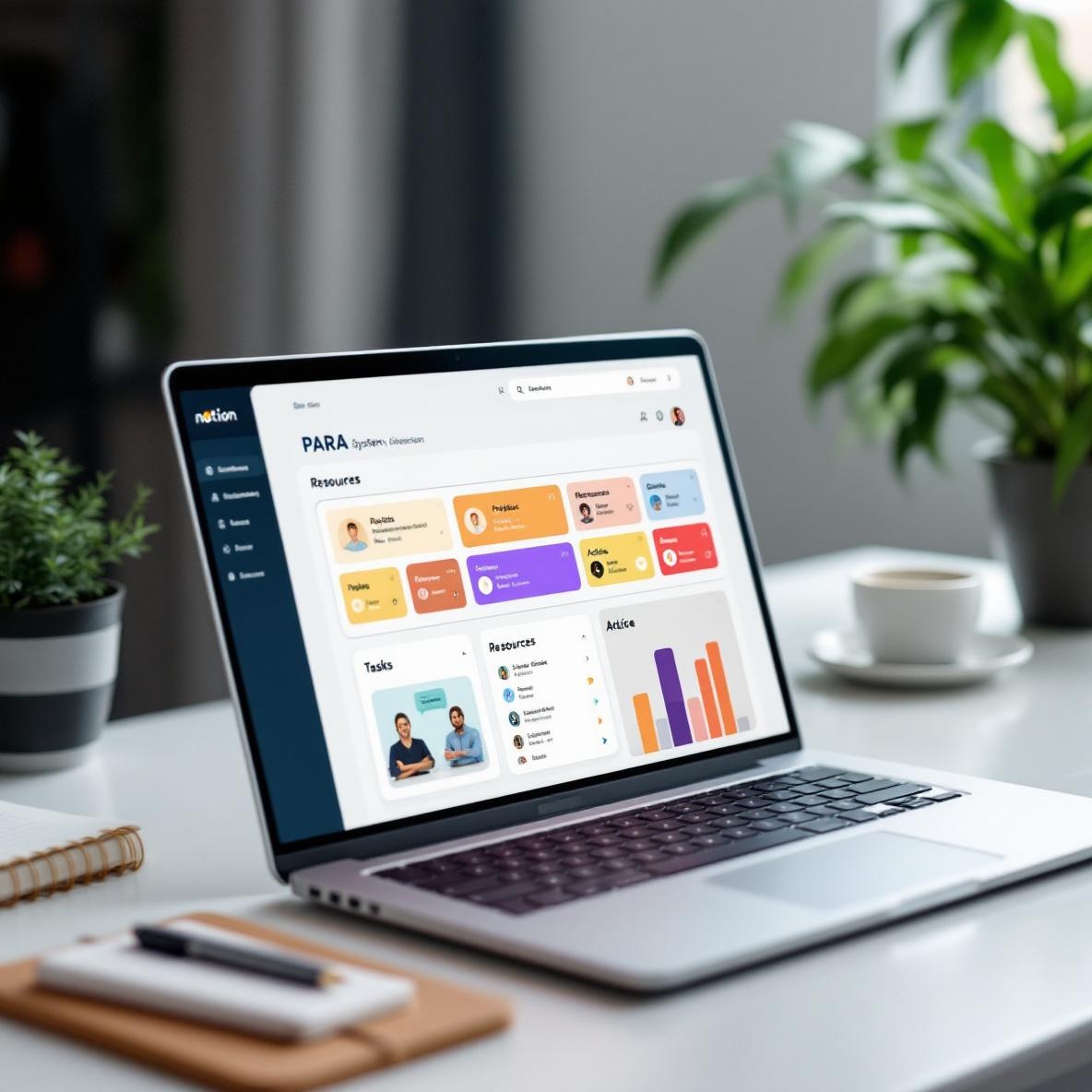
How to set up PARA system in Notion without accidentally recreating Google Drive chaos
I’ve tried to set up the PARA method in Notion maybe five times in the past two years. Every time I think, “This is the one. I’m doing it right this time.” And then two weeks later, my Projects section has four duplicate databases and one of them is named ‘untitled copy’. The idea behind PARA is rock solid—but the Notion implementation can get weird. Especially when you’re cloning templates, nesting pages in weird spots, or when Notion decides to break all your internal page links for fun ¯\_(ツ)_/¯
Here’s how I finally got PARA to work inside Notion without it collapsing into digital spaghetti. Yes, real use cases included. And yes, there was some swearing involved.
1. Building the PARA structure with linked databases
So the classic PARA setup includes four top-level categories: Projects, Areas, Resources, and Archives (hence PARA). The smart move is creating each one as a full-page database in Notion, not just as a page or a table. And yes, I definitely messed this up the first time.
Real mistake: I created “Projects” as a simple table, then put it inside a page called “Project Dashboard.” Problem is, I couldn’t reference it easily in other dashboards using linked views because Notion wanted the DB to be top-level. I had to duplicate the database to move it up… which meant losing all the filtered views unless I manually recreated them. Painful.
What actually works:
– Create Projects, Areas, Resources, and Archives as top-level full-page databases.
– To avoid cluttering your sidebar, group them inside a PARA folder (optional, but tidy).
– But *don’t* nest them under a Project Dashboard page if you want to use them in synced views.
Now each Notion database can have properties that allow cross-linking. I’m talking about multi-select tags (e.g., Area: “Finances”) in the Projects database, and relation properties linking Projects to their Areas, and Resources to both.
You will break something trying to set this up. Notion’s relation filter logic is still kind of dumb. Sometimes you need a roll-up to filter a view—which means 3 steps for something Airtable could do in one. 😛
2. Why Projects must be separate from Areas even if it annoys you
A super common early PARA mistake is blending Projects and Areas simply because they seem like the same thing during busy weeks. I’ve done it. I made a database called “Workflows” to house both and thought: “Yeah, this is smarter.” Nope. It worked until I needed to archive completed projects and realized Areas are never ‘done’. So I either had to archive an active area (which… no), or duplicate the table again.
What’s annoying: Areas often feel the same as ongoing Projects, especially in Notion because they *look* the same. Same columns, same filters, same layouts. But the mental model is different. Areas are *responsibilities*—things you keep up, like “Marketing” or “Health.” Projects are *outcomes*—like “Redesign website.”
Where it broke down for me:
– I used a checkbox property to mark “Completed,” and sorted them chronologically.
– Eventually, all my ‘active’ areas like “Finances” ended up at the bottom just because I never checked the box, and I forgot they existed.
Instead:
– Keep Areas and Projects in distinct DBs.
– Use a relation property in the Projects DB that links to an Area.
– Build a dashboard view to show: Area → Related Active Projects (via filtered relation)
Bonus pain: If you have multiple Projects linked to one Area and accidentally delete the relation from one Project, it removes the link in all dashboards unless you’ve nested filters carefully. I learned this after deleting a connection and suddenly having three dashboards go blank. 🙂
3. Connecting Resources the right way and not overtagging
In the PARA world, Resources are your catch-all inbox for digital reference material. Articles, PDFs, meeting notes, scripts, etc. But in Notion, this DB can go out of control fast, especially if you import too much stuff from Readwise or Evernote.
I got lazy with tags. I told myself I’d “come back and organize later.” Instead, I ended up with 130+ entries with tags like “🧠 Research” and “Misc” and even the very helpful “-”. Literally just a dash. Fantastic.
Resetting it worked better with these rules:
– Every Resource must be linkable to a Project or Area via relation property.
– If it isn’t? It gets archived.
– Tags limited to 10 consistent values. Not 47. Not “klju45kj”.
– Use a status property: Active vs. Archived
One trick that helped: Add a roll-up field in Projects that shows the count of related Resources. If it hits zero, you can manually audit for missing references.
Undocumented bug: In some Notion views, relation fields don’t display unless you click on the actual property. So I thought the Resources weren’t connected… but they were, just visually hidden in gallery view. Not helpful.
4. Creating a high friction Archive system on purpose
Archiving is supposed to be easy, right? Just move the old stuff to “Archive” and forget about it. But easy = dangerous, especially in Notion. I dragged a bunch of Projects into my Archive database manually and didn’t notice the relation links breaking until I checked a Project dashboard and saw “This database is empty.”
Apparently, Notion breaks internal page links if you move a full-page database into a different top-level database. Which, yes, makes absolutely no sense unless your archive is a page and not a DB.
Fix that by making Archive a status, not a move. Your Archives DB is just a filtered view of other DBs with “Archived” status = true.
What that changes:
– You don’t move the page. You just flip the status.
– Links don’t break.
– Project dashboards still show completed Projects (optional, via filter).
For Project archival, you might want these statuses:
– Not Started
– In Progress
– Blocked
– Complete
– Archived
Yes, “Archived” is a status *and* a database in some cases. Live with the tension. Because trying to move pages physically into another database is where Notion will betray you.
5. Dashboards that actually make the PARA setup usable
Okay, you’ve got your big four databases. Great. But if you’re just clicking into each one manually every time you want to see what you’re doing this week, you’ll burn out in two days.
Dashboards are how I finally got the thing to stick. I made three:
1. Weekly Action Dashboard
– Shows all Projects due this week
– Nested view of Tasks tagged with this week’s Projects
– Resources linked to any of those Projects
2. Area Status View
– One card per Area
– Inside each, a Related Projects linked database (filtered to In Progress)
– Related Resources rolled up
3. Everything View
– Tabs for Projects, Areas, Resources, Archives, and Quick Capture
– This is where I dump things from mobile or random tabs
The kicker: I used synced blocks to show top-level KPIs for a Project, like “Launch Date” or “Estimated Hours.” But synced blocks DO NOT work across databases, only across pages. That was a sad day.
For real-time productivity use (and not just pretty dashboards), Notion still stumbles when you try to do too much dynamically, like filtering a view based on the currently active page. You can simulate it with formulas and roll-ups, but once that logic breaks, debugging it is like reverse-engineering your own neurosis.
All that said, once you accept that Notion is a visual wiki and not a logic-based task engine, your PARA system can stay durable 80% of the time. The other 20% is just swearing at roll-up filters that return “No results” when they definitely, absolutely should not.