
Keyboard Shortcuts That Save Hours in Real Workflows
If you use computers for work and your work involves more than two tabs and one app, then keyboard shortcuts are less of a convenience and more like survival tools. I used to scoff at shortcut guides — like, am I really gonna remember Cmd+Opt+Shift+W just to close three tabs? But once I started tracking how much time I spend just flipping through windows and triggering tiny actions in VS Code, Notion, Slack, or even Gmail, I realized it’s not the big automations that save the day. It’s the micro-efficiencies.
And now I’ve got a few of these tattooed into my muscle memory (figuratively — although I did once write Cmd+K on a sticky note and somehow it ended up on my laptop for 8 months 🤷).
Let’s talk about some keyboard shortcuts that actually made my life easier — not just in theory, but in all the glitchy, ‘why is this firing twice’ chaos of a workday.
1. Switching between app windows that do not behave
Cmd+Tab is your basic weapon. But if you’re like me and you live your life inside Chrome, Notion, Slack, VS Code, and Terminal, then you start hitting the same app multiple times just to find the right window. Here’s where it gets irritating:
If you’re running multiple Chrome profiles (like one for work, one for personal, and one for staging environments), Cmd+Tab just brings the *last active* window, not the one you *meant* to bring forward. I can’t count how many times I ended up responding to a message as my test user because I landed in the staging Gmail 😬.
Real fix? Use Cmd+` (the tilde key above Tab) *within* the app to switch between windows. But here’s the kicker — on certain keyboards (I’m looking at you, MacBook Pro with Touch Bar), the backtick only works if your keyboard is set to US layout. If you’ve done anything weird with keyboard settings (like I did to fix a Karabiner conflict), Cmd+` silently stops working. No warning. Just… nothing.
Bonus tip: If you’re coding and have multiple VS Code windows open on different projects, hit Ctrl+Tab *inside* VS Code to switch tabs, and Cmd+` to jump between different project windows. But don’t try stacking those keystrokes too fast — I’ve found that if you press Cmd before letting go of Ctrl, VS Code thinks you’re trying to open the Command Palette. It doesn’t say this — it just fails silently 😛
2. Deep Gmail actions without touching your mouse
Gmail is one of those apps where you think there’s no time to be saved — until you start using its shortcut mode (it’s under Settings → See all settings → Gear icon → Keyboard shortcuts: On). Once enabled, you don’t need to keep clicking into emails or hovering to archive. Here’s my real-life morning triage routine:
– Hit “g” then “i” to jump to Inbox from anywhere
– Use “j” and “k” to move up and down (old-school Vim style)
– Press “x” to highlight a message, then “e” to archive
– If something looks spammy, press “!” and it’s marked as spam
– “r” to reply, “a” to reply all, “f” to forward — right from list view
But there’s a weird bug: sometimes if you open Gmail in an embedded browser tab from another app (like Slack’s preview), the shortcuts just won’t work. Nothing. You press “x” and expect it to select a message, but it acts like your keyboard is unplugged. Refreshing the tab doesn’t fix it — you have to click into the inbox list *manually* once before the shortcuts wake up. I’ve wasted way too many minutes blaming my muscle memory before realizing Gmail just went soft on me.
Also: “Shift+u” will mark an opened email as unread and leave it selected. This is a game changer if you do the read-then-remind-myself-later dance.
3. Universal text movement with Option and arrow keys
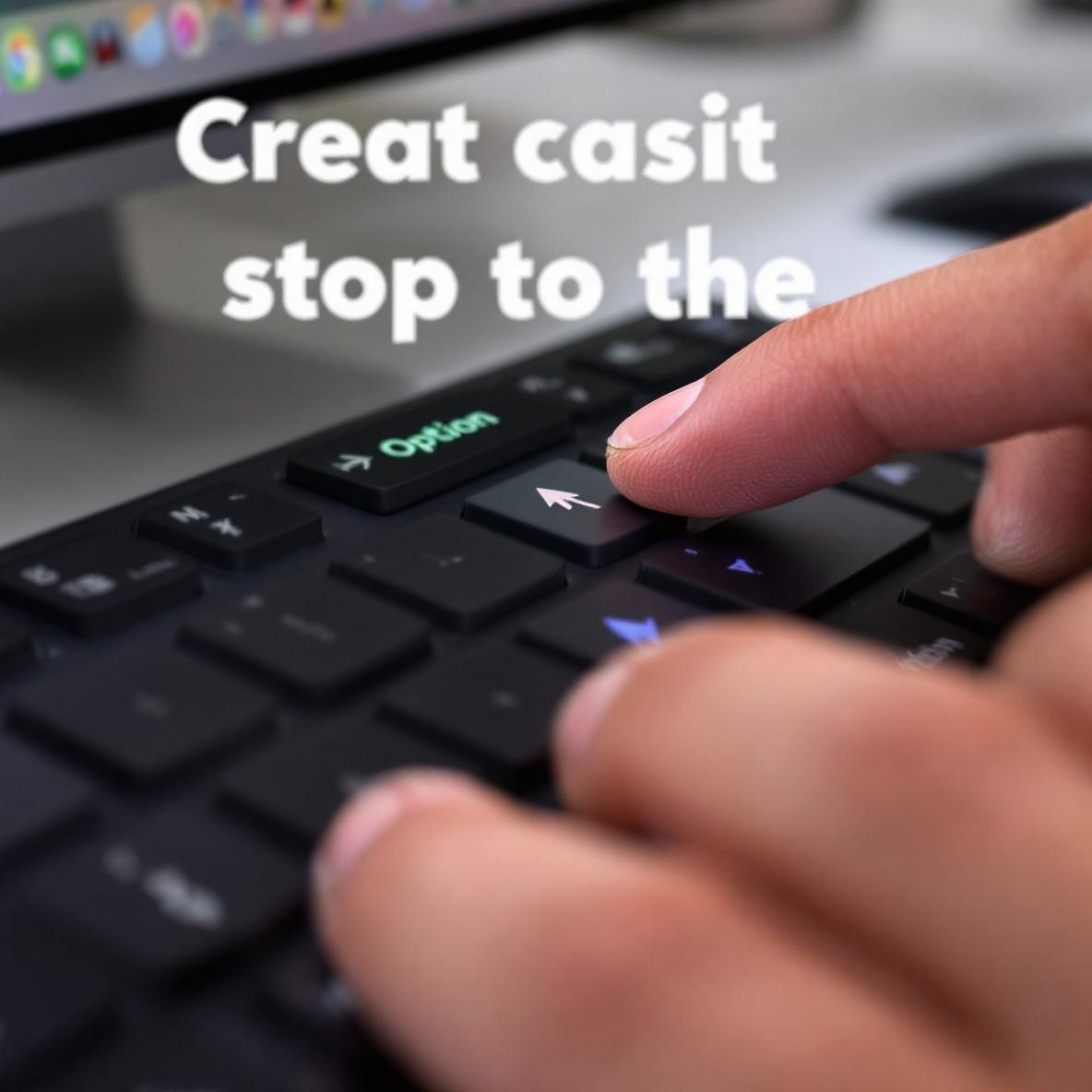
This one lives entirely in your fingertips. If you’ve ever watched someone hold down arrow keys to move to the start of a sentence — I’m begging you — teach them this.
Option + Left or Right arrow jumps word by word.
Combo it with Shift, and you’re selecting whole words at once. Option+Shift+Right = instant highlight of the whole sentence chunk by chunk. Option+Delete deletes an entire word to the left. This is a core muscle memory if you’re writing in Notion, Google Docs, Linear — basically any sane modern text field.
That said, Linear has an annoying defect here. If you’re editing a multiline markdown note and you hit Option+Up or Option+Down to move the cursor vertically by paragraph, it doesn’t behave consistently. Sometimes it jumps across task sections instead of up/down within the current context. I sent them a feedback report and they acknowledged it’s on the backlog, which basically means maybe next year 🙂
If you’re editing long messages in Slack (especially those weirdly long status updates nobody asked for), being able to skip word by word feels essential. Mix that with Cmd+Up/Down to jump to the start or end of a message draft… and you’re finally moving like a person who deserves two monitors.
4. Cmd Shift Slash only works when apps feel like it
One of my biggest loves — and pet peeves — is Cmd+Shift+/ (a.k.a. Cmd+?)
This is supposed to bring up keyboard shortcuts in whatever app you’re using. It works beautifully in Notion, Slack, Linear, Figma. Sometimes. Until you open the desktop version.
Case in point, Linear’s browser app opens the Shortcut modal as expected. Then you switch to the macOS desktop version, hit the same keys, and… nothing. No error. Just fails. You waste 6 seconds thinking maybe you didn’t press it right 😛
Turns out, keyboard shortcuts (ironically) are often mapped differently on Electron-based desktop apps. Cmd+Shift+/ is sometimes reserved by macOS — especially if you’re using a non-English keyboard layout. You’d think someone would solve this. Nobody has.
Same thing goes with Slack — the Slack web app responds instantly to Cmd+?/ but the desktop app randomly ignores it if another modal or thread is open. I’ve also seen this shortcut get completely hijacked if you’ve got a screen recording tool running (like Loom or OBS).
Eventually I gave up and made a personal Alfred shortcut to fetch markdown syntax and common actions because the defaults just weren’t trustworthy.
5. The ones that work no matter what platform you use
Let’s be honest: cross-platform consistency is a unicorn. But a few shortcuts really do just work — in macOS, VS Code, web apps, wherever:
– Cmd+C, Cmd+V (copy paste — obviously — but with one tip: use Raycast or Clipy to create a multi-item clipboard stack)
– Cmd+Z / Cmd+Shift+Z for undo-redo, especially in Notion where Cmd+Z also jumps back across context. (Fun fact: you can accidentally delete a whole block and restore it with Cmd+Z even if you navigated away.)
– Cmd+K for jumping to a global command bar (in Notion, Linear, Slack — same key, different heaven).
Cmd+K has basically replaced the “menu bar” in modern apps. I once had five apps open — Notion, Linear, Raycast, VS Code, and Slack — and realized I was using Cmd+K in *all of them*, over and over. It’s how I connect to issues, find buried pages, trigger command palettes.
Once you get comfortable with Cmd+K, you’ll start forgetting where anything lives in the UI and just let your keyboard do the typing.
Except in Google Docs. There it still means ‘Insert Link.’ Because of course it does.