
Prompt-Based Scripts That Blew Up My Product Launch Workflow
Launching a digital product with prompt-based scripts sounds like a breeze—like you’ll just whisper your product into ChatGPT’s ear and it’ll spawn a full campaign. I’ve tested that assumption, and uh… let’s just say I’ve seen prompts generate everything from a 9-paragraph email full of motivational quotes to brittle Airtable formulas that randomly break because of an unexpected dollar sign 😬
Anyway—here’s how I actually use prompt-based scripts to hold together the ~scotch-taped~ workflow I built for digital product launches.
1. Generating entire notion-based launch calendars via prompt chains
I used to create launch calendars by duplicating a Notion template and manually updating the dates, assets, and copy. The process was boring, error-prone, and usually meant I launched two days late because I forgot some weird dependency like Twitter size thumbnails. So I switched to generating them using GPT-style tools, but the breakthrough came when I realized chains matter more than single prompts.
My current system:
- Step 1: I paste my product description into a “Context Creator” prompt. This includes the vibe, audience, and which platforms I want to focus on (like Reddit, Product Hunt, or YouTube Shorts).
- Step 2: I run a separate prompt that outputs a 30-day distribution plan in markdown—but here’s the key: that prompt uses inline YAML tags that later get parsed into Notion automatically. No manual copy-paste.
- Step 3: I pipe the YAML into Make (Integromat) which converts it into Notion database entries.
Weird gotcha? One time, GPT decided that the key `launch_theme` should be renamed `theme_launch`, and that one-word flip broke my entire Integromat parsing step 😩 Took me over an hour to find it.
Also, GPT tends to hallucinate date structures. Sometimes it assumes week 0 starts on a Monday, other times on Sunday, and occasionally it invents Day 0 as some emotional manifesto publishing day ¯\_(ツ)_/¯ Worth triple checking all day math.
2. Writing cross-platform launch copy with reusable prompt blocks
One thing I’ve learned: the real enemy isn’t just bad messaging—it’s inconsistency. I once had a launch email that said “Launches June 15” and a Twitter bio tweak saying “Coming June 22.” Guess which one I scheduled first? Neither. I generated both with different prompts on different tabs, and didn’t realize they were contradicting each other 😛
Now I use what I call Prompt Blocks—basically reusable chunks I save in a text expander that I call from within other prompts. Example:
“`yaml
{{PRODUCT}}: Acorn, an experimental daily idea journal for creatives.
{{TAGLINE}}: Ship more ideas with less friction.
{{FEATURES}}: 1. Inline idea capture 2. Daily prompts 3. Browser extension support
“`
Then I will reference these inside larger prompts like:
“Write a three-tweet launch thread for {{PRODUCT}} using the provided tagline and features. End with a clear CTA.”
Tiny bug I ran into: OpenAI sometimes treats `{{PRODUCT}}` as a math operation if you don’t wrap it in triple backticks inside ChatGPT web. Suddenly it thought Acorn was multiplying with the tagline. 🤔
If I keep everything in Notion’s AI sidebar (more stable than asking ChatGPT manually and less context drop), I can just click a Snippet, tweak variables, and run the whole thing again.
Extra tip? I force every prompt to include a line at the bottom that says: `Double check all dates and pricing with the product page.` It’s saved me more times than I’d like to admit.
3. Using autosave prompt experiments in Airtable before publishing copy
Okay so you don’t exactly get version control history inside ChatGPT unless you’re religious about saving. Realistically, I lose my best prompt iterations on tab refreshes or when I accidentally regenerate a prompt with slightly worse phrasing. That’s where the Airtable hack comes in.
I set up a basic table:
- Prompt version
- Output result
- Notes (like “sounded too formal” or “used emojis I hate”)
- Stars (basically a 5-star rating column I fill in to remember my favorites)
I use Make to auto-log every call when I run a generation via webhook. That way even if I click “Try again” in ChatGPT, or overwrite the whole window during fatigue-fueled editing, the previous copies live on safely.
One specific Airtable bug I hit: using long text fields with markdown formatting sometimes causes truncation if you don’t check the “allow rich text formatting” option. I lost an entire launch tweetstorm because only the first blockquote snippet saved 🤦♀️
This logging system also helps when I go back to create derivative content (like a newsletter summary) and don’t want to regenerate from scratch. Also makes it easier to pick the best-performing tone retrospectively.
4. Automating trigger-based outputs when launch day finally hits
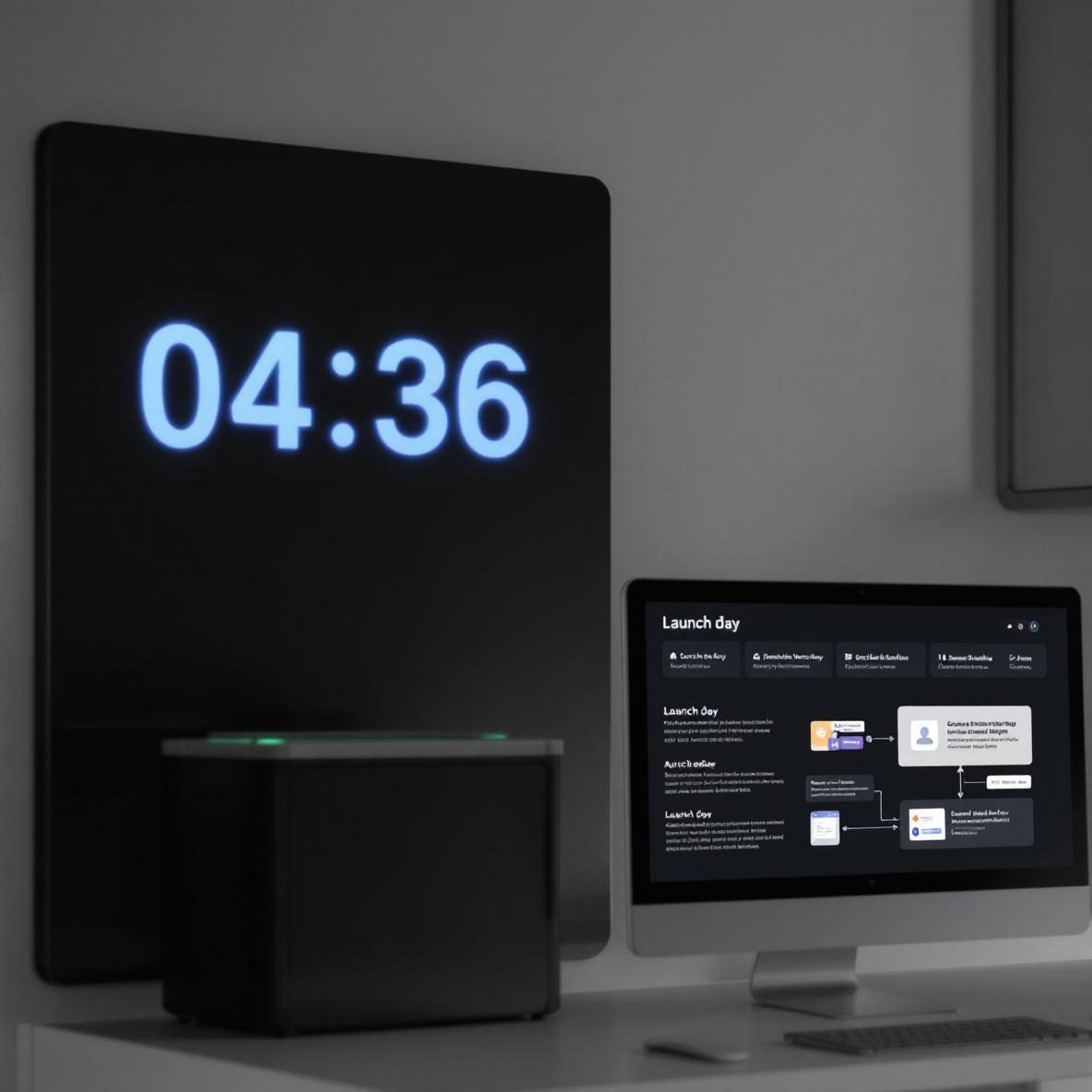
The dumbest moment of automation regret I’ve had lately came from believing that “future dated tweets” would just work. I scheduled launch tweets via Hypefury, scheduled blog post on Ghost, even created an automatic LinkedIn post from Airtable. The only missing piece? None of them shared the same internal clock.
I forgot that Ghost uses UTC, Twitter uses local timezone, and Airtable automations fire based on whichever timezone you last manually edited the base in 😑 Suddenly, things deployed out of sync—my blog post went live 6 hours before tweets.
Now I use a single master Zap triggered by a time-based schedule that pings multiple webhooks. Each webhook runs its platform-specific publishing sequence:
- Zapier pushes tweet thread to Hypefury
- Make publishes RSS feed updates to EmailOctopus
- Airtable updates status field to “Launched”
- Notion page is updated with a ❌ replaced by ✅
All of that works… unless you accidentally update a record on Airtable’s mobile app, which resets its timezone. I tested this: updating a launch field while eating lunch in another timezone caused my “launch indicator” Zap to misfire four hours early 🤷♂️
Here’s a tip I wrote and pinned to my own Notion dashboard after that mess:
> “Always manually trigger timezone-syncing Zaps the night before launch. Never schedule anything based on last-touched fields inside Airtable with collaborative teams.”
5. Fine tuning prompts that generate HTML formatted content blocks
For digital products that rely on custom landing pages—especially on Carrd or Framer—I generate HTML snippets for value props, testimonials, and call-to-action sections. But prompt-based generation here gets frustrating fast if you don’t pin down the HTML syntax strictly.
ChatGPT is smart enough to return proper HTML elements… until it isn’t. I’ve gotten `nested inside` headings more times than I care to count. Some things I’ve learned:
- Always request clean, flat markup with minimal “ nesting
- Add a “do not use inline CSS” rule unless you want hours of unpicking weird styles
- Tell it to comment every section so you can identify blocks later (e.g. ``)
- Run the HTML through a linter before deploying — one launch had an invisible FAQ after ChatGPT forgot to close a tag
- And honestly? Sometimes I manually clean it anyway. Especially if I’m passing it through Webflow embed blocks, which get cranky if there’s an extra line break or ampersand entity.Oh—and if you’re generating HTML to paste into Teachable or Gumroad description boxes? Test it in a sandbox preview first. Some platforms sanitize tags like “ or even `, so your carefully styled list might just render as plain text.I now keep a library of approved HTML prompt snippets in Raycast so I can pop them in instantly. The best ones include:
- A standard mobile-first button block
- A minimal FAQ dropdown block with `details`/`summary`
- Hero copy with centered headline and subheadline
6. Preventing prompt feedback loops when refining assistant behavior
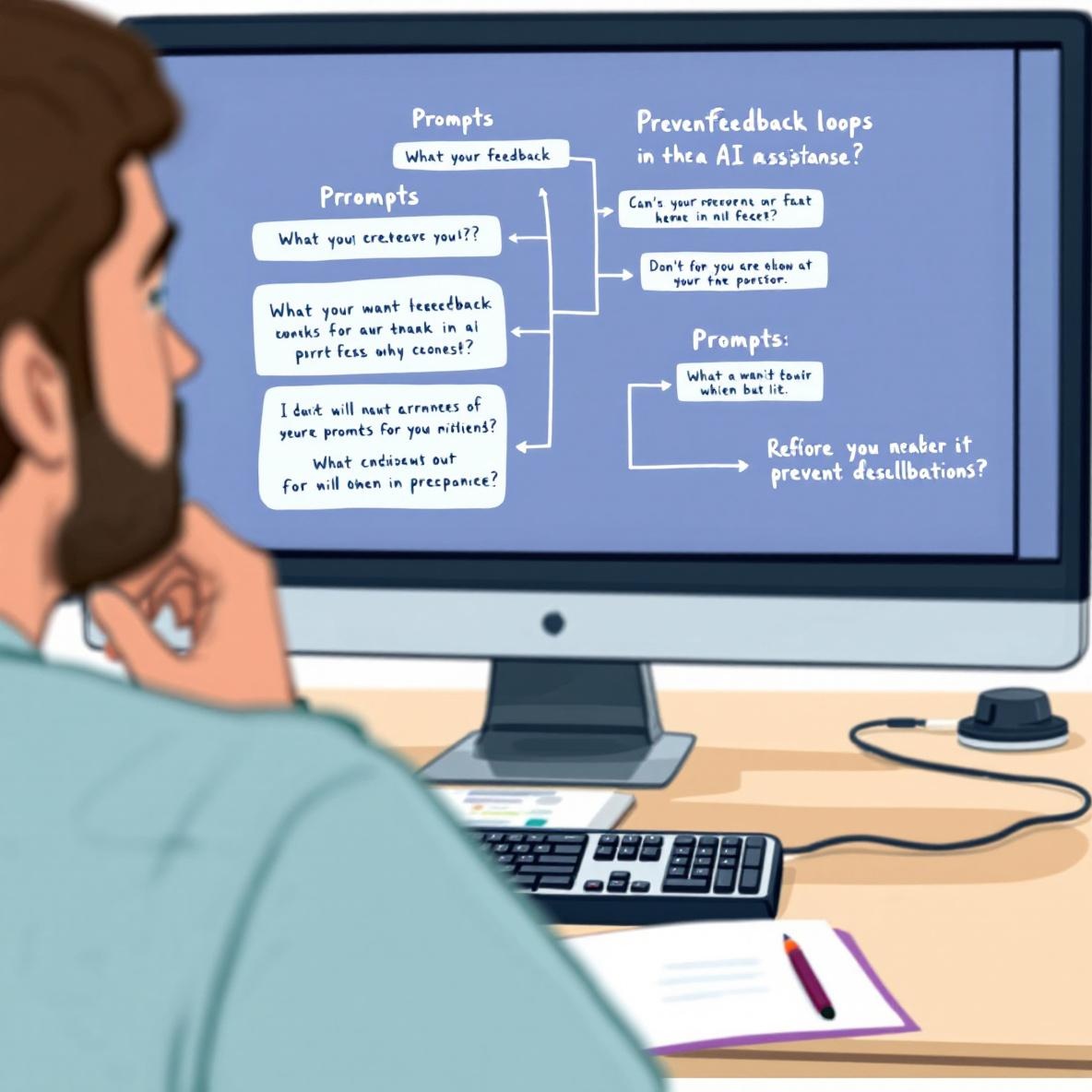
You know what’s worse than a bad prompt? A self-referenced prompt that regurgitates its own summary three times and derails any real creativity. When you ask ChatGPT to “improve that last version,” it’s often not actually referencing the content—it’s referencing its *own interpretation* of your last instruction set. That subtle loop breaks things.
In one test, after 4 generations of a launch email rewrite prompt, the final output had shifted tone so badly it started sounding like a SaaS sales PDF. Even worse, when I asked “Try again with a softer tone,” it somehow amped up the density and dropped things like:
“Acorn revolutionizes creativity workflows in a robust feature set design.”
That’s not softer. That’s… suction-cup cold 😐
My solution is to freeze good outputs as prompt checkpoints. I literally save them as labeled Intermediary States and force future rewrites to reference that version, not “the last one you just made.”
Even better: I disable memory features during refinement stretches. Fewer assumptions, less inherited voice drift.
The key is to never ask vague instructions like “try again but better.” Always say:
- Rewrite this while mimicking tone from version 2
- Keep the CTA unchanged, but shorten the intro paragraph to 2 lines
- Use second person voice, limit to 90 words
Cooler still is creating a new prompt chain for each copy archetype: the hype thread voice, the polished email tone, the casual Changelog. Then you can hop between them without cross-contamination.
It’s sort of like having different writer hats… but they all live in text files and occasionally talk back at you when you miswrite a system tag.
7. Safeguarding launches from accidental prompt-related hallucinations
This is easily the hardest part—because sometimes the hallucinations are *so* convincing you don’t even notice them until people reply angrily.
Example? During one launch, I asked: “Write a friendly launch description for my new writing app with a cool literary vibe.” ChatGPT included this line:
“Inspired by Hemingway and Salinger, Acorn understands when thoughts are half-finished.”
Beautiful line. One problem: *my app doesn’t do anything like that.* It doesn’t even analyze sentence structure. But I left it in. Five users emailed me within 48 hours wondering how to activate this so-called “Hemingway-style feedback”
Now I run a hallucination check. I literally ask ChatGPT:
- “List five statements in this copy that sound like product claims”
- “Which of these features do you deduce based on context?”
And yes—it’ll tell me when it made something up. When I did that with the Hemingway line, it highlighted it as a “vibe-congruent metaphor” 😅 Not great, but also helpful.
I also paste launch copy into a secondary GPT with zero prior context and ask: “What does this product promise to do?” Then I compare that answer to what it *actually* does. Any mismatches = rewrite.
Seriously, it only takes one fictional feature claim to blow up your support inbox.