
Top apps to organize your digital life without coding
If you’re juggling automation, digital clutter, and possibly three Trello boards that no longer do what they promised—they said they’d help, they lied—this post is for you. Some of these tools have saved me. Some have broken in strange ways. All of them helped me clean up at least *part* of my digital chaos without writing a single line of code (unless you count regex in filters, which I silently do). Let’s get into it.
1. Notion makes sense if you never close tabs
I’ve tried to quit Notion four times. Every time, I end up memorizing another keyboard shortcut and moving more of my life into it. The day I finally started dragging PDFs into a Notion table instead of just letting them rot in my Downloads folder was the day things shifted. It still feels a little like I’m organizing my brain into five-dimensional cubes… but it works.
Here’s how I handle it realistically:
– I have a single “Tasks” database with filtered views per project.
– I duplicated a calendar template someone posted on Reddit. It’s held up better than I expected.
– Daily journal entries are auto-created using a Make scenario that triggers at 6 AM (Zapier was too slow for me some days).
Weird issue from last week: I had a relation link to another page, and Notion suddenly stopped allowing me to “open in side peek”. I reported it. It resolved on its own 48 hours later. ¯\_(ツ)_/¯
One practical tip—don’t nest synced blocks inside toggles unless you’re emotionally ready to lose them (they go invisible in search, weirdly).
2. Airtable feels like Excel but makes you feel smart
So Airtable is my backbone for anything repetitive. I wrote a mini-CRM for myself in about an hour. Client onboardings? Airtable. Bill tracker? Also Airtable. And I like that it *looks* simple enough that clients can edit rows without panicking.
What got me: the Automations tab. You can literally rig up something like “when this checkbox is clicked, send a Slack message and create a Google Drive folder.” All of this with zero code. But also… don’t trust the automation run history. It’s vague, and sometimes it says “success” even when the output was blank. Learned this the hard way when someone asked, “Why didn’t the document folder ever show up?” 🙂
Very specific Airtable lessons that saved me:
– Use a formula field to create dynamic file names before sending to Drive
– If you’re using attachments, limit uploads via view filters or else things get messy
– Always name your automation runs clearly (“Create Invoice Row” > “Make Row”)
– Watch out for linked records stalling if target table limit is hit (quiet fail)
– Don’t overuse scripting unless you want tech debt in Airtable form
3. Tana feels like Roam if Roam weren’t on fire
Okay, I was skeptical of Tana at first. The onboarding mind map is a lot. But once I got over the “help panel trying to teach me quantum computing,” I used it to organize research notes for three client projects in the same week, and it strangely held up.
Tana isn’t quite plug and play like Notion, but their “SuperTags” let you build mini data structures—like tagging every client call with a schema for time, outcomes, and to-dos. It’s like fake coding with checkboxes.
Bug alert: I had a webhook set up using Make to import notes from emails. Worked great for two weeks, then stopped. Turned out Tana had silently changed rate limiting rules, so the webhook just got ignored—no error. Had to switch to a 5-minute delay buffer, and now it’s fine… but took me way too long to figure out.
Also, if you import a big mind dump via markdown, Tana sometimes fails to recognize headings and skips entire blocks. I fixed it by slicing the note into 5K-character chunks using ChatGPT and uploading them one by one.
4. Cron makes calendars less awful somehow
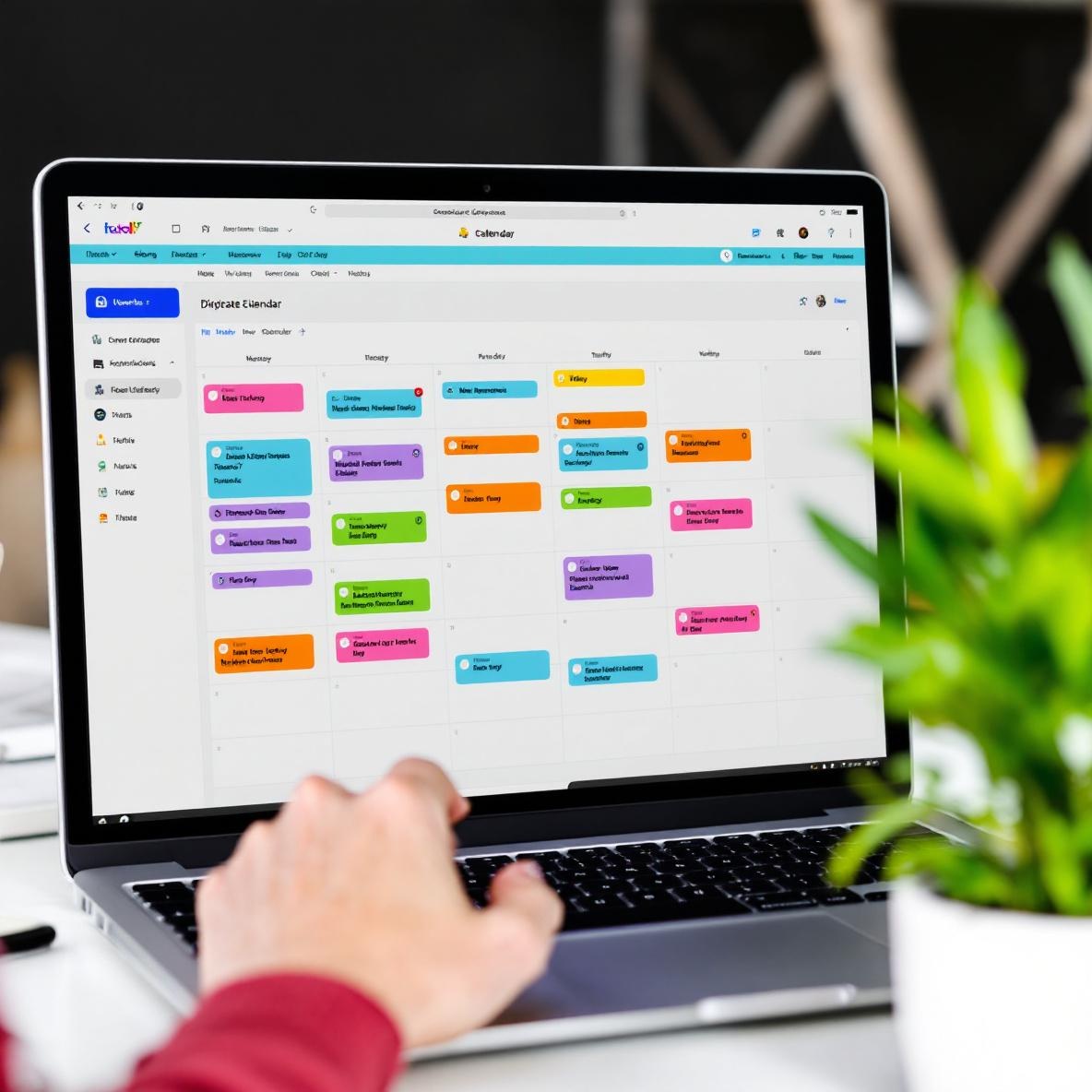
Cron got absorbed into Notion and still works better than Google Calendar’s native interface, somehow. The desktop app just feels snappy. Moving blocks of events around actually *feels* tactile. Meetings with weird links? Instantly detected and clickable. Timezone math? Feels less maddening than usual.
Here’s what I actually do with Cron:
– I use color coding per client. But the sync with Google Calendar sometimes drops color formatting if two calendars clash.
– The quick add popup supports natural language input, like “Coffee with Max Wed 3 PM,” and usually gets it right.
– You can hold down command while dragging to duplicate events—so worth it when I need to clone 4 follow-up calls.
Last week, I moved a recurring event and it duplicated instead of moving. It only did this if I edited series *and* month view was open. “Insufficient permissions” briefly flashed onscreen before disappearing. I couldn’t replicate it again.
It links beautifully with Notion’s calendar API… which also breaks very quietly. I’ve built Make scenarios to patch missing event copies manually every night now. Because I don’t trust anything anymore. 😛
5. Zapier is the friend who lets you down occasionally
I love Zapier… until something breaks and I have no idea why. Like last month, I had a perfectly functional Zap: when a new Trello card appeared with a green label, create a draft Google Doc and notify my writer. It worked for two weeks. Then with no change to the underlying Zap, it stopped.
In the task history? “Success.” But no doc, no notification, nada. Turned out Zapier’s built-in Trello integration was silently rate-limited (again), but didn’t bubble the error. Just said “complete.” Zapier support was kind, but slow.
What I do now:
– I use a filter + Delay After Queue after anything Trello-related
– I pipe errors into a Slack DMs channel using Paths + error branches
– I name each path something literal, like “If Card Has Label Green”
– When in doubt, I log every action in Google Sheets as a fallback
In most other cases, Zapier is solid. The Formatter tools feel like low-code magic, and Paths let me build pseudo logic branches without writing anything.
But honestly I’ve started building key flows in Make or Pipedream if the logic gets weird. Zapier’s great for reading “if this, then do one simple thing.” Once you start chaining 3–5 conditions with looping paths… something somewhere will get lost.
6. Make is fun till your brain melts
Make (formerly Integromat) is the most powerful non-coding tool I’ve used. It’s also the one that makes me question life when I’m debugging. The UI is visual, which helps. But when a node fails at 5:17 AM and I can’t tell if it was the webhook or the Airtable module? I spiral.
Real scenario: I had a scenario where a webhook captured new data entries from a Typeform, then formatted responses, created a row in Airtable, uploaded an attachment to Drive, then emailed a summary. Worked fine. But then someone added a smiley face emoji to the Typeform question. The resulting string broke the JSON parsing step. Zero errors—it just stopped midway. I didn’t notice till four entries were missing. Had to add a text sanitizing step via Text Parser.
Secrets to keeping your Make scenarios healthy:
– Add error handlers to everything that matters
– Always log raw responses in a debug Airtable
– Use variable description comments (they save your future self)
– Watch out when renaming variables—backtracing breaks easily
If you ever try to use Make for Google Sheets over 1000 rows—it’ll technically work, but the UI complains and slows down, and there’s weird row offsetting. Their support forum hints at rate limit workarounds but doesn’t document them. I’ve set sleep intervals between loops, and that’s helped… until it doesn’t.
I still love it. But I don’t trust it.